西维蜀黍

【Linux】搭建 DHCP 服务器

Installing DHCP Server

Before proceeding towards installing a DHCP server, first update the packages by running the following command in Terminal:

$ sudo apt-get update

Then run the following command in the Terminal to install DCHP server:

$ sudo apt-get install isc-dhcp-server -y
  ...


【macOS】制作 macOS 安装 U 盘

Refer to https://dortania.github.io/OpenCore-Install-Guide/installer-guide/mac-install.html

下载镜像

Approach 1 - Munki’s InstallInstallMacOS utility

In order to run it, just copy and paste the below command in a terminal window:

mkdir -p ~/macOS-installer && cd ~/macOS-installer && curl https://raw.githubusercontent.com/munki/macadmin-scripts/main/installinstallmacos.py > installinstallmacos.py && sudo python installinstallmacos.py

As you can see, we get a nice list of macOS installers. If you need a particular versions of macOS, you can select it by typing the number next to it. For this example we’ll choose 10:

This is going to take a while as we’re downloading the entire 8GB+ macOS installer, so it’s highly recommended to read the rest of the guide while you wait.

Once finished, you’ll find in your ~/macOS-Installer/ folder a DMG containing the macOS Installer, called Install_macOS_11.1-20C69.dmg for example. Mount it and you’ll find the installer application.

  • Note: We recommend to move the Install macOS.app into the /Applications folder, as we’ll be executing commands from there.
  • Note 2: Running Cmd+Shift+G in Finder will allow you to easily jump to ~/macOS-installer

Approach 2 -Command Line Software Update Utility

Open a terminal window then copy and paste the below command:

softwareupdate --list-full-installers;echo;echo "Please enter version number you wish to download:";read;$(if [ -n "$REPLY" ]; then; echo "softwareupdate --fetch-full-installer --full-installer-version "$REPLY; fi);

  ...


【Golang】使用 - 执行shell命令

执行命令并获得输出结果

最简单的例子就是运行ls -lah并获得组合在一起的stdout/stderr输出。

func main() {
	cmd := exec.Command("ls", "-lah")
	out, err := cmd.CombinedOutput()
	if err != nil {
		log.Fatalf("cmd.Run() failed with %s\n", err)
	}
	fmt.Printf("combined out:\n%s\n", string(out))
}
  ...


【Golang】package - os/exec

func Command(name string, arg ...string) *Cmd

func Command(name string, arg ...string) *Cmd

Command returns the Cmd struct to execute the named program with the given arguments.

It sets only the Path and Args in the returned structure.

If name contains no path separators, Command uses LookPath to resolve name to a complete path if possible. Otherwise it uses name directly as Path.

The returned Cmd’s Args field is constructed from the command name followed by the elements of arg, so arg should not include the command name itself. For example, Command(“echo”, “hello”). Args[0] is always name, not the possibly resolved Path.

  ...


【Golang】使用 - 优雅重启/关闭进程

Graceful Exit

func Notify(c chan<- os.Signal, sig ...os.Signal)

Notify causes package signal to relay incoming signals to c. If no signals are provided, all incoming signals will be relayed to c. Otherwise, just the provided signals will.

Package signal will not block sending to c: the caller must ensure that c has sufficient buffer space to keep up with the expected signal rate. For a channel used for notification of just one signal value, a buffer of size 1 is sufficient.

It is allowed to call Notify multiple times with the same channel: each call expands the set of signals sent to that channel. The only way to remove signals from the set is to call Stop.

It is allowed to call Notify multiple times with different channels and the same signals: each channel receives copies of incoming signals independently.

  ...


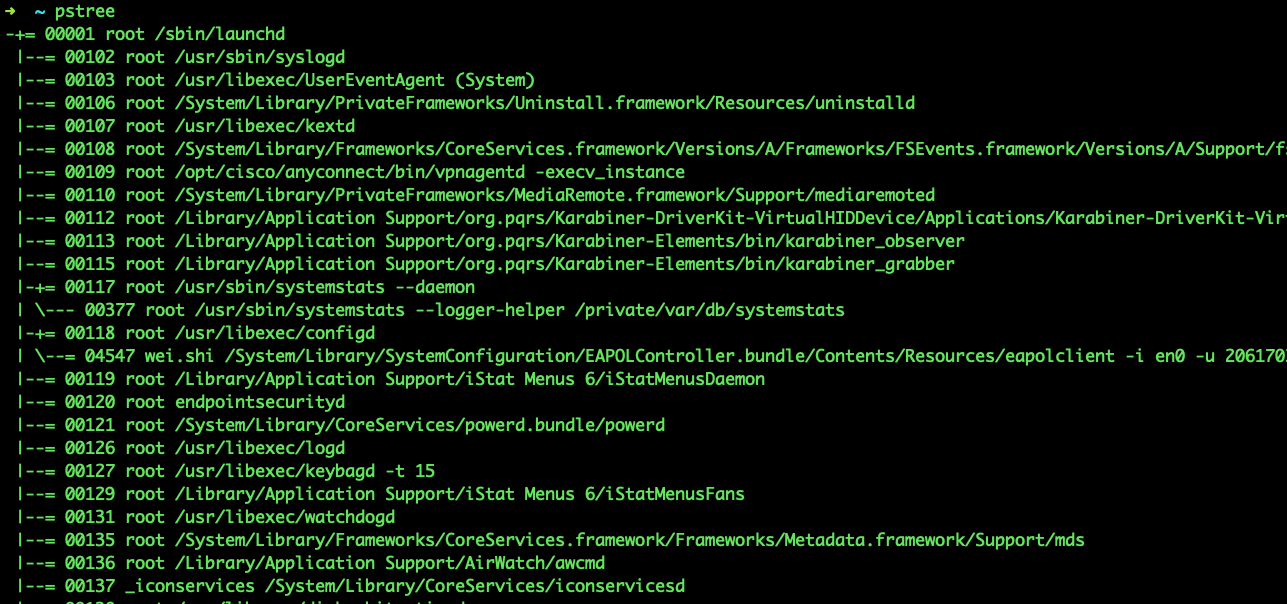
【macOS】显示进程父进程

$ brew install pstree

  ...


【macOS】远程控制

  ...


【OpenWrt】查看已连接设备

查看通过无线/有线连接的设备

Approach 1

$ cat /proc/net/arp
IP address       HW type     Flags       HW address            Mask     Device
192.168.0.1      0x1         0x2         **:95:**:5c:**:79     *        eth0.2
192.168.1.242    0x1         0x2         **:6c:**:77:**:40     *        br-lan
192.168.0.124    0x1         0x0         **:00:**:00:**:00     *        eth0.2
192.168.1.198    0x1         0x2         **:8d:**:5a:**:3c     *        br-lan
  • Flags标志可以表示是否在线状态,0x0表示离线,标志0x2表示在线
  • Device表示接口的名称
  ...


【Ubuntu】效率

Shutcut

Switch windows

  • Ctrl + `: Switch windows of an app directly
  • Super + `: Switch windows of an application

Move windows

  • Shift + Super + ←: Move the current window one monitor to the left.
  • Shift + Super + →: Move the current window one monitor to the right.
  • Shift + Super + ↑: Move window one monitor up
  • Shift + Super + ↓: Move window one monitor down
  • Shift + Super + Page Down: Move window one workspace down
  • Shift + Super + Page Up: Move window one workspace up

Windows

  • Alt+F4: Close window
  • Super+H: Hide window
  • Super+↑: Maximize window
  • Super+↓: Restore window
  • Super+←: View split on left
  • Super+→: View split on right
  • Alt + Enter: Toggle fullscreen mode

Switch workspace

  • Super+Page Up: move to the workspace shown above the current workspace in the workspace selector.
  • Super+Page Down: move to the workspace shown below the current workspace in the workspace selector.
  • Shift+Super+End: Move window to last workspace
  • Shift+Super+Home: Move window to workspace 1

Getting around the desktop

  • Alt+Esc: Switch between windows in the current workspace. Hold down Shift for reverse order.
  • Super+A: Show the list of applications.

Misc

  • Super+L: Lock the screen.
  • Super+V: Show the notification list. Press Super+V again or Esc to close.
  • Super + D: Show/Display desktop
  • ctrl + alt + T: open a new Terminal window

Common editing shortcuts

  • Ctrl+A: Select all text or items in a list.
  • Ctrl+X: Cut (remove) selected text or items and place it on the clipboard.
  • Ctrl+C: Copy selected text or items to the clipboard.
  • Ctrl+V: Paste the contents of the clipboard.
  • Ctrl+Z: Undo the last action.

Typing

  • Super+Space: Switch to next input source
  • Shift+Super+Space: Switch to previous input source

Accessibility

  • Ctrl + Alt + =: Increase text size
  • Ctrl + Alt + -: Decrease text size

Software

Daily

Software Market

  ...


【Windows】U盘安装 Windows Server

Build USB-stick

  ...